
How to create a company vimiLeave and edit people vimiLeave Entitlement individually?
- Happy Marine VIMIGO
- Jun 25, 2024
- 1 min read
Download File:
Guideline:
Step 1: Click Side Menu Icon ▶️ at the upper left, then click on Setting Icon ⚙️ at the bottom left of the side menu bar. Next, click on Company Leaves.

Step 2: Click on Create New Group to create a new group
or Click on Duplicate to copy the leave group and all its leave types.

Step 3: Fill in the leave group name and description.

Step 4: Select one of the Approval Types. Next, click Submit.


Step 5: Click on the number of leave types to edit custom leaves.

Step 6: You can create a new leave type by clicking Create Custom Leaves and make changes to leave details by clicking the Edit button.

Step 7: Fill in all the details. After done, click Submit or Update after edit.


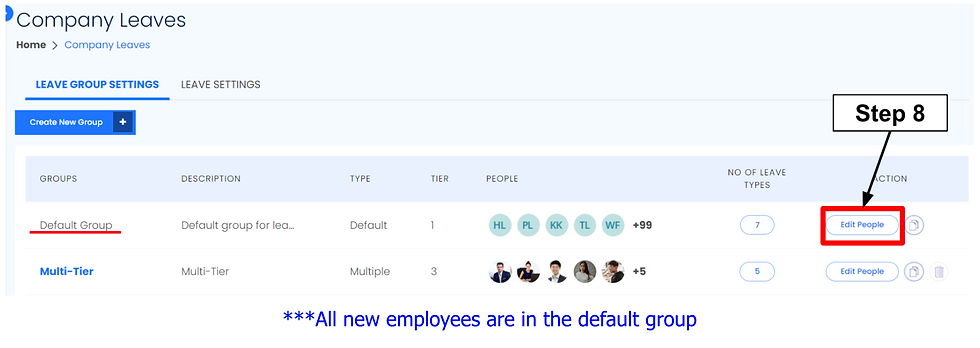
Step 8: Click Edit People in Default Group to move employees to the selected leave group.
Step 9: Move selected employee to selected leave group.

Step 10: Tick on the tick box and click Confirm.

Note: If you move an employee to another group, not only the employee’s leave balance will be reset, but all pending applications that have not been approved will be automatically canceled.


Comments