
How to create new vimiGoal template?
- Happy Marine VIMIGO
- Jun 19, 2024
- 1 min read
Download File:
Guideline:
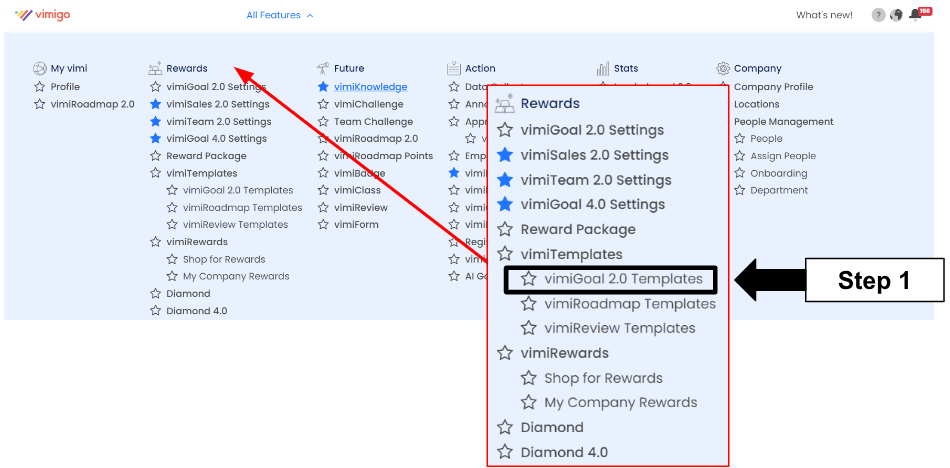
Step 1: Head over to All Features Tab at the top of the website 🡪 Under Rewards list, click on vimiGoal 2.0 Templates
Step 2: vimiGoal 2.0 Template page 🡪 Click Add New Template.

Step 3: Under Add A New vimiGoal 2.0 Template, enter the name of the template on the space provided.

Step 4: Setting the details of the goals
Step 4.1: Enter the VimiGoal in the 1st column. VimiGoal is the summary of the job task to let employees see on a mobile phone.
Step 4.2: Enter the Description in the 2nd column. The description is to state more detailed information about the goal.
Step 4.3: Enter the Points in the 3rd column. Points are how many points the employee can achieve after completing the goal.
Step 4.4: Enable the Scoring option if needed in the 4th column. It is used to let employees decide how many points they can achieve if they don't fully meet the goal.
Step 4.5: 6 dotted symbol helps in arranging the goal following its priority while Dustbin icon helps in removing the wrongly set goal.

Step 5: ‘Give Some Rewards!’ is used to decide what’s the reward and how much the employee can receive based on their completion rate.
Step 5.1: There are 3 types of rewards which are text that helps in rewarding any type of text-related rewards (eg: movie tickets), vimiBank that helps in rewarding monetary rewards (eg: RM100) and Diamond which is non-monetary rewards.
Step 5.2: Fill in the Rewards column and the Completion Rate Required.

Step 6: Click on Save Template after everything is done.

Step 7: Lastly, a message stated ‘Successfully created vimiGoal Template’ will appear on the upper right side.



Comments