
How to create vimiTeam settings?
- Happy Marine VIMIGO
- Jun 21, 2024
- 2 min read
Download File:
Guideline:
Step 1: Head over to All Features Tab at the top of the website 🡪 Under Rewards list, click on vimiGoal 2.0 Settings.

Step 2: vimiTeam 2.0 settings 🡪 Select New vimiTeam

Step 3: vimiTeam Title 🡪 Give your vimiTeam a title.

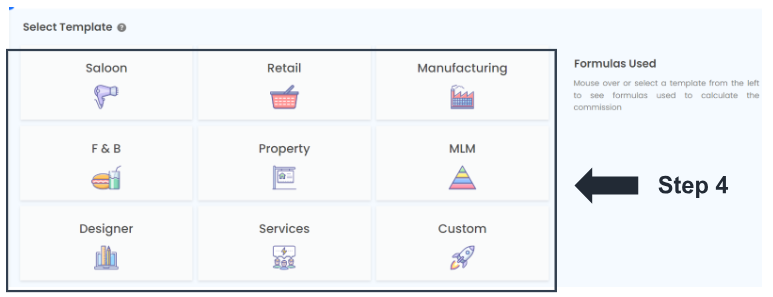
Step 4: Select Template 🡪 Select a template to decide which formula to be used. Normally choose ‘Custom’.
Step 5: Additional Settings 🡪 Enter all the details (Start Date, End Date, Period, Repetition, Type & Mission Type)
* Type: There are 2 types to be selected (Sales & Services).
Sales type will have vimiSales but Services type do not have vimiSales.
* Mission Type: There are 3 Mission Type to be selected (MYR, QTY & DAY).

Step 6: Employees Assigned 🡪 Select the employees for the vimiTeam 🡪 Next button.

Step 7: Set vimiGoal 🡪 Create New vimiGoal
The vimiGoal for vimiTeam is different with the vimiGoal that is outside the vimiTeam. The vimiGoal outside the vimiTeam will not affect the results of the vimiGoal inside the vimiTeam.

Step 8: Click ‘Apply Template’.

Step 9: Select the previously created template that you want to use 🡪 Apply Template.

Step 10: Check all the details (VIMIGOAL, DESCRIPTION, POINTS & SCORING) of the vimiGoal and make sure it is correct.

Step 11: Give Some Rewards! 🡪 Check and make sure the details ( REWARDS & COMPLETION RATE REQUIRED (%) ) are correct.

Step 12: Employees Assigned 🡪 Select the correct department and employees 🡪 Save as Draft.

Step 13: The newly created vimiGoal will be shown 🡪 Click Next

Step 14: Set vimiSales 🡪 Add Product / Commission

Step 15: Set the details ( Formula, Start Date, Repetition, Reward Type ) of the vimiSales.

Step 16: Set the number of mission 🡪 Set the LABEL, TARGET (MYR) & REWARD (MYR) for each MISSION.

Step 17: Employees Assigned 🡪 Select the correct department and employees 🡪 Click Save.

Step 18: A message stated ‘ New vimiSales will be created. Do you wish to continue?’ will appear on the middle top of the page 🡪 Click OK.

Step 19: The newly created vimiSales will be shown 🡪 Next

Step 20: Set for the Sales Team Allowance and Support Team Allowance.
*** Please be aware that if the Sales Team has 6 employees, 5 employees have hit the target sales and qualified into M3 but 1 of the employees has only hit the target sales until M2, all the 6 employees will be rewarded for M2 reward only. ***

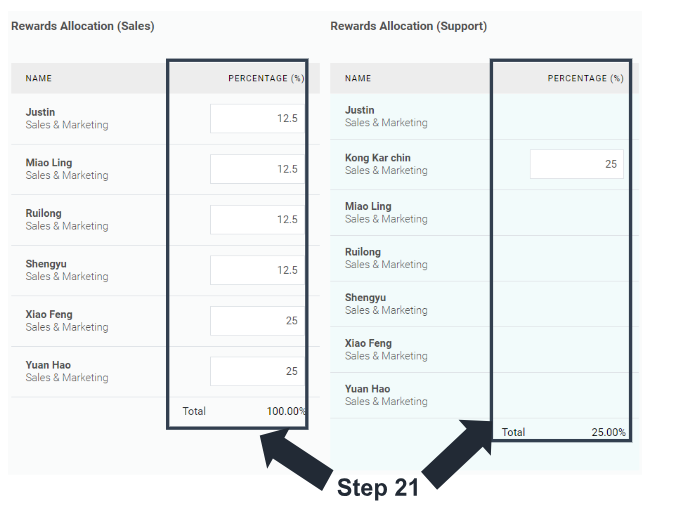
Step 21: Rewards Allocation (Sales) 🡪 Set the PERCENTAGE (%) of each employee 🡪 Rewards Allocation (Support) 🡪 Set the PERCENTAGES (%) of each employee.
Step 22: Click Save as Draft button if the vimiTeam is not completely set / Click Publish button when everything in the vimiTeam is ready to publish.




Comments